
How-to
How to record a Google Meet without a bot
A notetaker bot joins your Google Meet as one more participant: everyone sees it in the list, and the host may have to let it in. You can get the same transcript and notes by recording the call on your own computer instead. Here is how to do it in Chrome and on a Mac with Spellar, and what Google Meet’s own recording asks for.
Details about Google Meet’s own recording were last checked on against Google’s help centre.
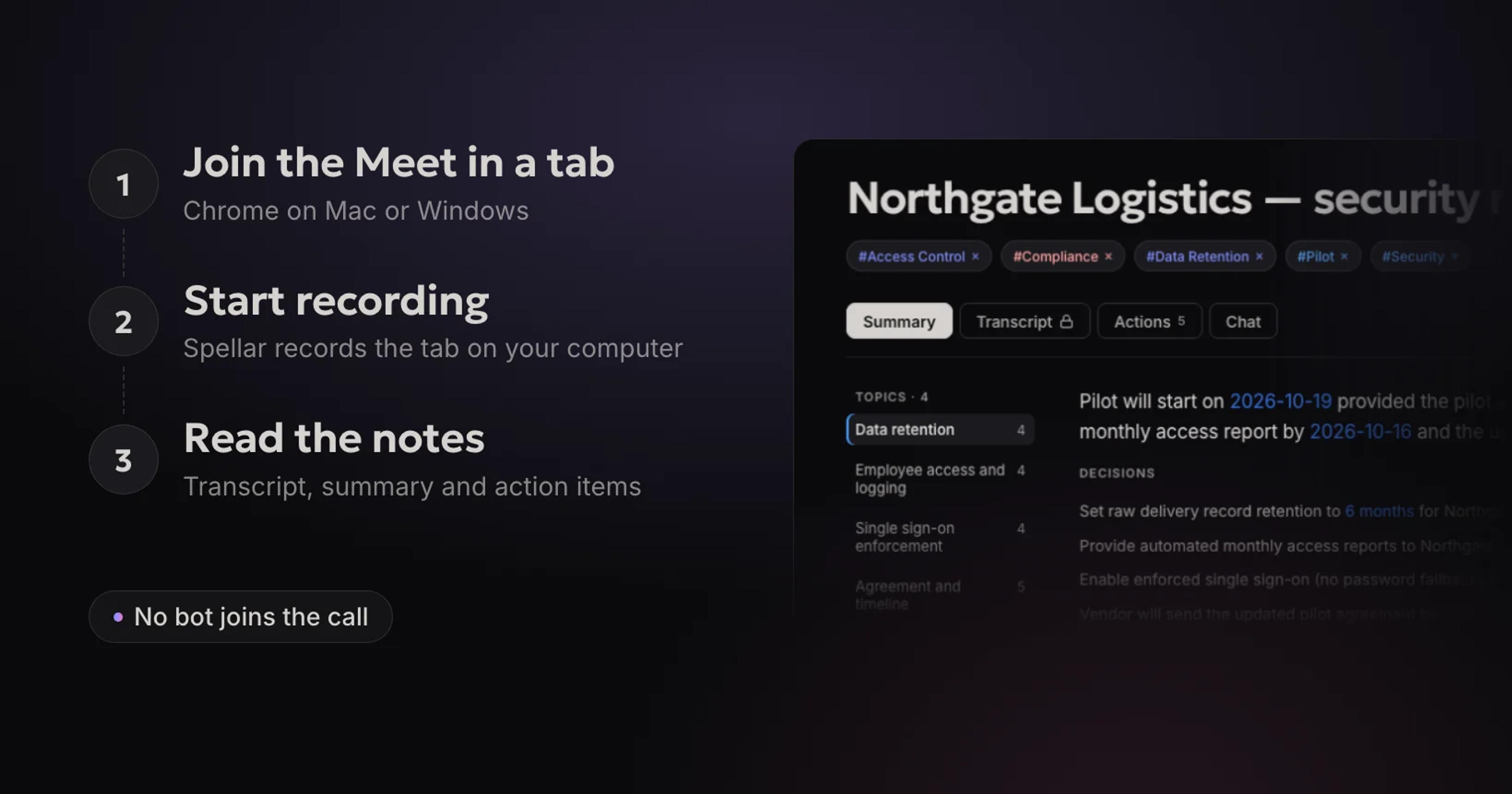
Three ways to record a Google Meet
- In Chrome, with the Spellar extension. It records the Meet tab. Nothing to install besides the extension, and it works on Windows too.
- On a Mac, with the Spellar app. It records your microphone and the Mac’s audio, whichever browser the Meet is in.
- With Google Meet’s own recording, if your Google Workspace edition has it and the host is allowed to record.
None of the three adds a bot to the call.
Record a Google Meet in Chrome
- Add Spellar to Chrome. Install the Spellar extension from the Chrome Web Store, pin its icon to the toolbar and sign in on spellar.ai. It works in Chrome and other Chromium browsers on Mac and Windows.
- Join the Google Meet in a tab. Open the meeting as usual. If the Meet tab was already open when you installed Spellar, reload it so the transcript can name the speakers.
- Start recording. Click the Spellar icon and press “Start Recording”, click “Record with Spellar” on the call page, or press ⌘⇧S (Ctrl+Shift+S on Windows). The first time, Chrome asks you to allow the microphone.
- Stop when the call ends. Press “Stop Recording” or the same shortcut. If you just leave the call, the recording stops by itself a few seconds later.
- Read the notes. The transcript, summary and action items are in your Spellar account a few minutes later, with speakers named from the call.
Add Spellar to Chrome or read more about Spellar for Chrome.
Record a Google Meet on a Mac
- Install the Mac app. Download Spellar for Mac and sign in. It needs macOS 15 or later.
- Allow the microphone and system audio. In Settings ▸ General ▸ “Permissions”, allow Microphone for your own voice and System Audio Recording for everyone else on the call. Without the second one, only you are recorded.
- Join the Google Meet and start recording. Join in any browser, then click “Start Recording” in the Spellar window or from its menu bar icon. Spellar can also suggest recording when it notices a call, or start by itself when a calendar event with a call link begins.
- Stop and read the notes. Stop from the same place. The Mac app transcribes on your Mac by default, then writes the summary and action items.
What about Google Meet’s own recording?
Google Meet can record a meeting itself, without a third-party bot, but not for everyone. According to Google’s help page on recording a meeting:
- recording is available only in certain Google Workspace editions;
- participants can record only if the host has permission to record;
- everyone gets a notification when the recording starts or stops;
- the recording is saved to the meeting organiser’s Google Drive.
If your account has it and you are the one allowed to press Record, it is a good option for a video of the whole meeting. If not, recording on your own computer is the way that does not depend on the host’s plan.
Tell people you are recording
No bot in the call means nothing announces the recording for you. Say at the start that you are taking notes with a recorder, and stop if someone objects. Recording laws differ between countries and states, and some require everyone’s consent, so check the rule that applies to you and to the people you are meeting.
Good to know
- A recording in Chrome can last up to 90 minutes. For a longer meeting, start a new recording when the timer runs out.
- Spellar records the audio, not the video.
- Recordings made in Chrome are transcribed on Spellar’s servers. The Mac app transcribes on your Mac by default and can keep the audio there too.
- The iPhone and iPad app records with the microphone, so it is for meetings in person. For a Google Meet, record on a computer.